Phoenix Introduction & Bucknell Deployment
Resources
You must watch all videos before the lecture.
Objectives
-
0 points
We are live!
Have the basic Phoenix Framework running on eg.bucknell.edu.
The objective of this lecture is to create a website/app using Phoenix and get it up and running on our eg.bucknell.edu server.
Important! Moving forward, all objectives will only be checked and graded on your live website. It is your responsibility to ALWAYS ensure your live website is in a working state and online.
1. Installing Postgres
We have Elixir installed but few websites function without a database to draw data from or store user credentials. Thus, we now need to install postgres as our backend SQL database service.
1.1 Installing Postgres (Windows WSL / Linux Only)
This is a great guide you can follow. Make sure
- when selecting the password for
postgresuser to set it topostgresas well. - when creating your first database create it with the same name as the postgres user instead of the
mydb:
createdb postgres
If you get an error that the postgres database already exists then you can skip this step and you are done.
Test your installation with
psql --version
psql (PostgreSQL) 16.4 (Ubuntu 16.4-1.pgdg22.04+1)
1.2 Installing Postgres (MacOS only)
The best way to install Postgres on MacOS is via Homebrew.
Follow this guide to install postgres.
Test your installation with
psql --version
psql (PostgreSQL) 16.4 (Ubuntu 16.4-1.pgdg22.04+1)
Everything version 15+ is fine for this course.
Next set a password for the postgres. The following will switch you to the postgres user account:
sudo -i -u postgres
You can now open psql
psql
In psql (this is the direct interface to the database) you can set a password:
ALTER USER postgres WITH PASSWORD 'postgres';
Now you can run exit (twice, subsequently) to get you back to your workspace as the default user.
1.3 Lab Computers only
Developing your project on the lab machines throughout the semester is possible but perhaps not as ideal / fleshed out as developing form your own computer. To be honest, last semester we had no student code from the lab machines thus i neglected the instructional part on that a little. If you still want to trailblaze ahead here and work together with me to get this running you are more then welcome to. Just be warned, things might be a bit exerimental.
If you plan to work exclusively on the lab machines you will have three technical options:
- Use the same Database for Development and Production (very bad idea)
- Don't use a prod server and push your dev page (even worse idea)
- Ask your professor for a second database url which we can setup in your
config/dev.exsfile just like we would setup a production db url inconfig/runtime.exs. Note that this option is only available if class is not full and there are some leftover database links available.
There might be an even more straightforward way to this, i am all ears for suggestions. Unless I get any, we go with 3.)
2 Logging into PSQL
This section applies to all students as it will be useful to know how to access the database directly on the lab machines / or via linux remote. You might want to refer back to this section should you royally mess up your database sometime in the future or need to fix (hack) some raw data.
Revisit your secret database url on the website:
ecto://USER:PASSWORD@eg-postgresql.bucknell.edu/DATABASE
Notice that your USER and DATABASE are one and the same.
We can butcher this url and feed the pieces to the psql command:
On linuxremote / lab computers you should be able to login via your database url:
psql -h eg-postgresql.bucknell.edu -U USER
This will prompt you for the password next, providing is will get you into the psql shell.
From here we have root access to the raw database. We'll not delve deeper here but want to ensure you can login before moving on. To get out again you can enter quit.
3. Installing Hex and Phoenix (Windows and Mac)
The next command will install phoenix in your local user's directory.
Remember if you work on the lab machines you start every session with module load elixir erlang. You might want to add those in your bashrc, just saying.
mix archive.install hex phx_new
(Windows only) also install inotify-tool for auto-page reloading:
sudo apt-get install inotify-tools
Cloning personal repository and creating Phoenix Project
Now head over to gitlab. You can find your personal link on the course website under Resources/Gitlab
In your VSCode terminal navigate to (create if path doesn't exist)
~/workspace
Clone your repository
git clone <yourlink.git>
Careful! This will only work if you have set up ssh publickey authentication correctly. If not watch this video around the 3:15min mark on how to do this or ask the professor or your partner in class.
Do not go into your cloned folder yet! We are going to create the phoenix repository from ~/workspace so we don't have to move our files afterwards.
Start by renaming your folder to csci379, for example:
mv z csci379
mix phx.new csci379 --app app
Do not change the app name from app and make sure you are not altering any optional arguments that you may explore via mix help phx.new.
When prompted whether you would like to install dependencies, confirm yes.
4. VS Code Workspace and useful Key Combinations
I have already created the VSCode workspace file and filled it in with some recommended settings. Go to File > Open Workspace from File... and navigate to ~/workspace/csci379 and select the csci379.code-workspace file.
You should see your folder being popolated with a bunch of files and folders!
A few very helpful keycommands that I keep using all the time:
CTRL+~Hides/shows the terminalCMD+BHides/shows the sidebarCMD+Shift+FSearches for someting in your entire project (open sidebar if hidden)CMD+Shift+EShows you all files and folders (opens sidebar if hidden)CMD+POpens a file by seaching for the filename (also recent files)
If you aren't on a mac you might look into the Settings on what those map to and learn them.
Fantastic! All that remain is to create the database: Open a terminal. This should directly start at your project's root path. Type:
mix ecto.create
And run the server:
mix phx.server
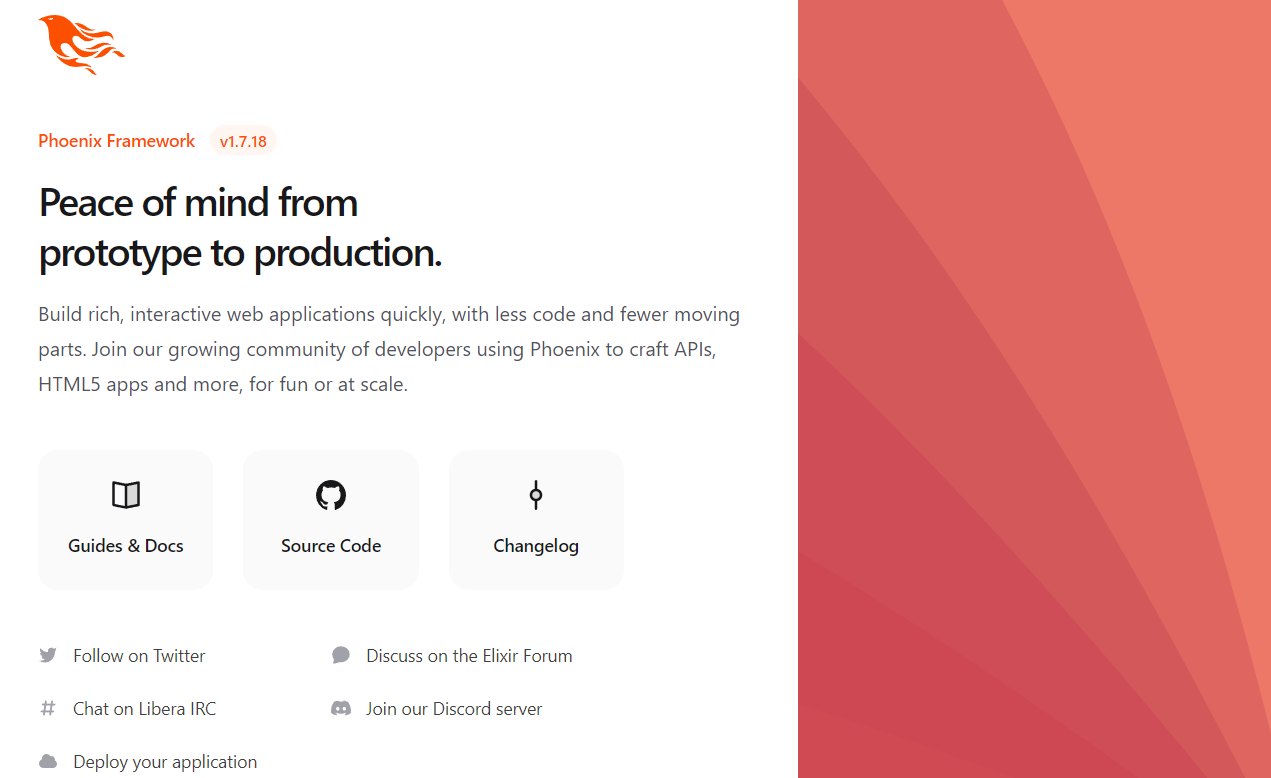
A testwebsite should now be accessible on http://localhost:4000 and you are done, huray!
5. Deploying to Bucknell
5.1 Personal Computers only
First ssh into linuxremote3 (linuxremote3 not 1 or 2 is actually important as that is the server that hosts our websites!)
ssh <user>:linuxremote3.eg.bucknell.edu
5.1.1 Password-less linuxremote (if not already)
If you are prompted for a password here you must set up public key authentication: Back on your laptop open a second terminal and create your public and private key. Confirm all steps without changes:
ssh-keygen
Read out and copy the public key:
cat ~/.ssh/id_ed25519.pub
The file might be named differntly but we want to print out the public key.
Back at your first terminal (where you should already be logged into linuxremote3):
vim ~/.ssh/authorized_keys
Paste your public key in there, save and close.
In your other terminal you should now be able to login without passwort promt:
ssh <user>:linuxremote3.eg.bucknell.edu
You can even reduce that to:
ssh linux_remote3
by adding something like this to ~/.ssh/config on your local computer:
Host linuxremote3
  HostName linuxremote3.eg.bucknell.edu
  ForwardX11Trusted yes
  User af033
  RemoteCommand zsh
  RequestTTY yes
While we are on bucknell's linux system we should set up our secrets.
Modify ~/.bashrc or ~/.zshenv to include the production databases's credentials and a secret:
export DATABASE_URL="find_this_on_the_website"
export SECRET_KEY_BASE="Iee/+2HRTmYA03aa1xvY0umwT1GBM2VPrdMpTpay0NPwacef4L+Wa1bntBQiU6Nk"
Obviously replace find_this_on_the_website with your database url that you can find on the course website in your user-menu (when logged in). Also fill in your unique secret key base which you can generate from the local project root via:
mix phx.gen.secret
qTw2tdqKikuNLJSn66TzGf063lwVJ272qlwEAmWyWDZeuPGu2z1n5AEGdTbCDz95
Back in our local project workspace.
Update config/prod.exs:
config :app, AppWeb.Endpoint,
  cache_static_manifest: "priv/static/cache_manifest.json",
  check_origin: ["https://eg.bucknell.edu"] # <-- update to this
Also update config/runtime.exs:
# ...

config :app, App.Repo,
  # ssl: true,
  url: database_url,
  pool_size: String.to_integer(System.get_env("POOL_SIZE") || "2"), # <-- change to "2" !!
  socket_options: maybe_ipv6

# ...

config :app, AppWeb.Endpoint,
  url: [
      host: "eg.bucknell.edu",
      path: "/csci379z", # <-- replace z with YOUR LETTER (lowercase)
      port: 443,
      scheme: "https"
    ],
  force_ssl: [rewrite_on: [:x_forwarded_proto]],
  http: [
    # Enable IPv6 and bind on all interfaces.
    # Set it to  {0, 0, 0, 0, 0, 0, 0, 1} for local network only access.
    # See the documentation on https://hexdocs.pm/bandit/Bandit.html#t:options/0
    # for details about using IPv6 vs IPv4 and loopback vs public addresses.
    ip: {0, 0, 0, 0, 0, 0, 0, 0},
    port: 4500 # <--- REPLACE with your unique port number
  ],
  secret_key_base: secret_key_base

  # ...
Since we serve our website locally directly on localhost but our production environment is setup under a subdomain eg.bucknell.edu/csci379a-z we also need to tweak our websocket on the frontend to prepend the folder if we are in production enviroment:
assets/js/app.js:
// TODO: change letter in next line to your letter (lowercase)
let liveSocketPath = process.env.NODE_ENV === "production" ? "/csci379z/live" : "/live";

let csrfToken = document.querySelector("meta[name='csrf-token']").getAttribute("content")
let liveSocket = new LiveSocket(liveSocketPath, Socket, {
  longPollFallbackMs: 2500,
  params: { _csrf_token: csrfToken }
})
Don't forget to replace LETTER with your letter again, this time, lower-case.
Now your production environment is set up and should be able to connect to the database later.
In your local computer's project workspace you will need to add two misk tasks:
lib/mix/tasks/deploy.ex:
defmodule Mix.Tasks.Deploy do
  use Mix.Task

  require Logger

  @shortdoc "SSH into the server, update code, run tests, and restart the Phoenix server"

  def run([ssh_server, commit_message]) do
    # make sure you have an environment variable DATABASE_URL in the format:
    # ecto://USER:PASSWORD@eg-postgresql.bucknell.edu/DATABASE
    db_url = System.get_env("DATABASE_URL")
    [_, _, _, database] = String.split(db_url, "/")

    Logger.debug("Pushing to remote branch...")
    System.cmd("git", ["add", "."], use_stdio: false)
    System.cmd("git", ["commit", "-m", commit_message], use_stdio: false)
    System.cmd("git", ["push"], use_stdio: false)

    Logger.debug("Deploying to #{ssh_server}...")

    # Chaining commands using `&&` to prevent SSH connection closure
    ssh_command = """
    echo "Loading environment..." && \
    module load elixir erlang > /dev/null || { exit 1; } && \
    cd ~/workspace/csci379z && \
    echo "Resetting any local changes..." && \
    git reset --hard > /dev/null || { exit 1; } && \
    echo "Pulling latest code..." && \
    git pull > /dev/null || { exit 1; } && \
    echo "Stopping running server..." && \
    tmux kill-session -t #{database} >/dev/null || true && \
    echo "Loading dependencies..." && \
    mix deps.get --only prod > /dev/null || { exit 1; } && \
    echo "Compiling code..." && \
    MIX_ENV=prod mix compile > /dev/null || { exit 1; } && \
    echo "Exporting DB URL..." && \
    export DATABASE_URL="#{db_url}" && \
    echo "Removing old digested files..." && \
    MIX_ENV=prod mix phx.digest.clean --all > /dev/null || { exit 1; } && \
    echo "Migrating database..." && \
    MIX_ENV=prod mix ecto.migrate > /dev/null || { exit 1; } && \
    echo "Deploying assets..." && \
    MIX_ENV=prod mix assets.deploy > /dev/null || { exit 1; } && \
    echo "(Re)starting server in tmux..." && \
    tmux new -d -s #{database} \
    "export DATABASE_URL='#{db_url}' && \
    module load elixir erlang >/dev/null && \
    MIX_ENV=prod mix phx.server"
    echo "Deployment successful."
    """

    # Run the SSH command and redirect both stdout and stderr to /dev/null
    System.cmd("ssh", [ssh_server, "-t", "-o", "RemoteCommand=" <> ssh_command], use_stdio: false)
  end

  def run(_) do
    Logger.error("Usage: mix deploy <ssh_server> <commit_message>")
  end
end
Important! Find the lind in this program that requires changing your letter this time all by yourself!
Also you will need to have your DATABASE_URL locally in an enviroment variable as well.
This will allow you to simply run mix deploy linuxremote3 <commit_message> from your local computer and automatically ssh into Bucknell's linuxremote3 server in order to update the live website. Simplicity itself!
mix ecto.create and mix ecto.drop will not work on the production server as commands as we don't have postgres superadmin rights. Thus we will need to add a custom script that simulates the same behavior.
Add lib/mix/tasks/reset_tables.ex (create folder path as it doesn't exist yet):
lib/mix/tasks/reset_tables.ex:
defmodule Mix.Tasks.ResetTables do
  use Mix.Task

  @shortdoc "Deletes all tables in the database."

  def run(_) do
    # Start the application to ensure Repo is loaded
    Mix.Task.run("app.start")

    alias App.Repo
    alias Ecto.Adapters.SQL

    Mix.shell().info("Resetting tables...")

    # Drop all tables
    query = """
    DO $$ DECLARE
      r RECORD;
    BEGIN
      FOR r IN (SELECT tablename FROM pg_tables WHERE schemaname = current_schema()) LOOP
        EXECUTE 'DROP TABLE IF EXISTS ' || quote_ident(r.tablename) || ' CASCADE';
      END LOOP;
    END $$;
    """

    SQL.query!(Repo, query, [])
    Mix.shell().info("Dropped all tables.")
  end
end
Since we can't delete and recreate the database directly (on bucknell's server, because of missing admin rights) this workaround will essential do the same steps as mix reset. (Delete, Recreate, Migrate)
If we ever mess up our migrations/database we can now run MIX_ENV=prod mix reset_tables (in linuxremote) to reset the live database, erase all data and migrate from scratch.
5.2 Lab Machines only
I wrote the previous section on deployment assuming you are working on your laptops. The following is not tested and I ask for some patience as we work it out together.
General steps:
- have two database urls stored as environment variables
DATABASE_URL_DEVandDATABASE_URL_PROD. Adjust config accordingly. - Clone the workspace a second time into
~/workspace/<LETTER>That is your production env. - Repeat 5.1.1 such that you can login from bucknell servers into linuxremote3 without password.
- change the deploy script to the following:
defmodule Mix.Tasks.Deploy do
  use Mix.Task

  require Logger

  @shortdoc "Commit and push code, run tests, and restart the Phoenix server in production"

  def run([commit_message]) do
    # make sure you have an environment variable DATABASE_URL_PROD in the format:
    # ecto://USER:PASSWORD@eg-postgresql.bucknell.edu/DATABASE
    db_url = System.get_env("DATABASE_URL_PROD")
    [_, _, _, database] = String.split(db_url, "/")

    Logger.debug("Pushing to remote branch...")
    System.cmd("git", ["add", "."], use_stdio: false)
    System.cmd("git", ["commit", "-m", commit_message], use_stdio: false)
    System.cmd("git", ["push"], use_stdio: false)

    Logger.debug("Deploying...")

    # Chaining commands using `&&` to prevent SSH connection closure
    ssh_command = """
    echo "Loading environment..." && \
    module load elixir erlang > /dev/null || { exit 1; } && \
    cd ~/workspace/LETTER && \
    echo "Resetting any local changes..." && \
    git reset --hard > /dev/null || { exit 1; } && \
    echo "Pulling latest code..." && \
    git pull > /dev/null || { exit 1; } && \
    echo "Stopping running server..." && \
    tmux kill-session -t #{database} >/dev/null || true && \
    echo "Loading dependencies..." && \
    mix deps.get --only prod > /dev/null || { exit 1; } && \
    echo "Compiling code..." && \
    MIX_ENV=prod mix compile > /dev/null || { exit 1; } && \
    echo "Exporting DB URL..." && \
    export DATABASE_URL="#{db_url}" && \
    echo "Removing old digested files..." && \
    MIX_ENV=prod mix phx.digest.clean --all > /dev/null || { exit 1; } && \
    echo "Migrating database..." && \
    MIX_ENV=prod mix ecto.migrate > /dev/null || { exit 1; } && \
    echo "Deploying assets..." && \
    MIX_ENV=prod mix assets.deploy > /dev/null || { exit 1; } && \
    echo "(Re)starting server in tmux..." && \
    tmux new -d -s #{database} \
    "export DATABASE_URL_PROD='#{db_url}' && \
    module load elixir erlang >/dev/null && \
    MIX_ENV=prod mix phx.server"
    echo "Deployment successful."
    """

    # Run the SSH command and redirect both stdout and stderr to /dev/null
    System.cmd("ssh", ["linuxremote3", "-t", "-o", "RemoteCommand=" <> ssh_command], use_stdio: false)
  end

  def run(_) do
    Logger.error("Usage: mix deploy <commit_message>")
  end
end