Elixir: Booleans, Floats, Integers, Anonymous Functions, Atoms, Bit Manipulation, Cond
Objectives
-
1 point
Syllabus Quiz
Achieve at least 8/10 points on your first and only attempt at the Syllabus Quiz
-
1 point
Exercism: Lasagne
Basics
-
1 point
Exercism: Pacman Rules
Booleans
-
1 point
Exercism: Freelancer Rates
Floating Point Numbers, Integers
-
1 point
Exercism: Secrets
Anonymous Functions, Bit Manipulation
-
1 point
Exercism: Log Level
Atoms, Cond
I am super exited to accompany you thoughout the semester while you deep dive into advanced, modern web development.
Today we will get Elixir installed, and your IDE configured for maximum productivity. Further we will set up a repository for your exercism exercises that we will submit via CLI (command line interface).
In the first two weeks we will be mostly working on Exercism exersises to learn the basic Elixir functional programming language. This was overwhelmingly requested by students of the previous iteration of this course.
1. Objective: Syllabus Quiz (1 point)
Skip for now Hold on to the quiz until after the lecture! We want to use the in-class time for more interesting content.
When you are ready go and fill out the Syllabus Quiz. You have unlimited time but only a single attempt. This must be done individually. You need to score at least 8 / 10 points for the objective to be counted. After finishing the quiz your score will be displayed and you can access the link again to show the received score.
2. An important decision
You will have to make an important decision right now. Where will you work throughout the semester? We support the following options in this course:
- Your Windows Laptop via WSL (Windows Subsystem for Linux)
- Your Linux Laptop (same instructions as WSL)
- Your MacBook
- Our Lab Linux Computers
All cloud based web server infrastructure is overwhelmingly Linux. That being said, if you use WSL on windows machines your choice does not matter for succeeding in this course. All options are viable but there are some switching costs if you later decide to go with another route.
Ask in class if you want to hear my opinion what might be the best option for you.
Note that some instructions, mostly setup stuff at the beginning of the semester, will be slightly different based on what you use. Where applicable I will elaborate more on diveriging commands or external installation instructions for given operating systems.
2.1 Installing WSL (Windows Users only)
Skip this section if you don't plan on working on a Windows Computer
If you haven't already you will now need to install WSL from Microsoft's website: https://learn.microsoft.com/en-us/windows/wsl/install#install-wsl-command
During the installation you will create a linux user with a password. I highly recommend to use a very short username such as alex.
3. Installing VS Code
You are free to use whatever IDE and AI Integration tools that you like for this course. I do however strongly suggest to use VS Code as it by far the most feature-rich and industry-adopted IDE nowadays. Also if you don't use VS Code my ability to help you in class might be reduced as I am not familiar with other IDEs aside from VIM.
3.1 Personal Computers only
If you haven't already installed VS Code on your computer you can do so here: Installing VS Code Only install the program itself, don't bother with any plugins like git or such yet.
3.1.1 Windows (WSL) users only
Install the Extension WSL, if not already installed.
Afterwards, check the bottom bar for a blue button "WSL". That will reload VS Code in the Linux environment, which affects what commands are available in the terminal, path structure and other things. From now on always work in WSL environment for this course.
3.2 Lab Linux Machines only
On the lab computers simply type code into the terminal. That should open VS Code.
3.3 Extensions
Please install the following VSCode extensions.
Mac Users Note you won't need to install WSL and thus all extensions in the screenshot will be under the same group Local instead.
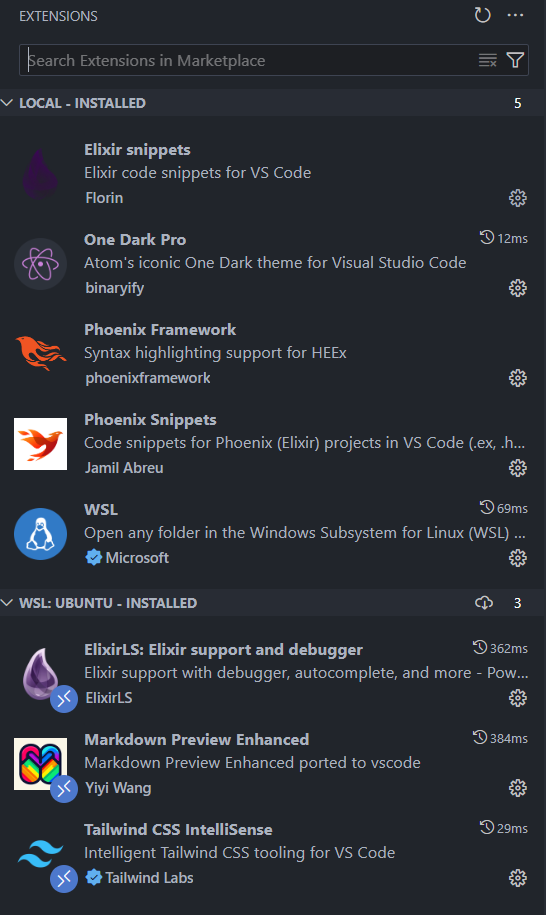
Here is a short description of what they do:
One Dark Prohands down my most favorite color template.ElixirLSthe most important of all plugins. Provides syntax highlighting, debugger, in-line context menu, problem detection, autocomplete and much, much more.Tailwind CSS IntelliSensewill detect classes in your templates, format and order Tailwind classes, and provide quality of live features for our frontend engine.Elixir snippets,Phoenix Snippetsthey provide handy shortcuts to bootstrap and quickstart features such as functions, modules, and docstrings.Phoenix Framework. Phoenix has it's own template files.heex(Embedded Elixir). To make those sections look nice we need that.WSL(Windows only) Switches the terminal from your windows prompt to linux shell. Also switches file/folder structure to linux environment. Linux/Unix is widely prefered when it comes to Web Development as tool chains are much more supported.Markdown Preview Enhanced(optional) Convenient plugin that lets you preview markdown files directly in VSCode. Useful to keep yourREADME.mdandCHANGELOG.mdmaintained.
VS Code Settings
Please take a look at my VS Code settings file. You can access/change yours by hitting CTRL/CMD + ,. I have commented useful sections that you should copy into your environments. Notice to add those instructions, not just replace the entire JSON file or you will loose all your custom settings.
{
  // Settings to be overridden for [elixir] language specifically.
  // If you like those settings you can move them to global scope instead.
  "[elixir]": {
    "editor.acceptSuggestionOnEnter": "off",
    "editor.formatOnType": true,
    "editor.insertSpaces": true,
    "editor.trimAutoWhitespace": false,
    "editor.wordBasedSuggestions": "off",
    "files.trimFinalNewlines": true
  },
  "[html]": {
    "editor.defaultFormatter": "esbenp.prettier-vscode"
  },
  "[json]": {
    "editor.defaultFormatter": "esbenp.prettier-vscode"
  },
  "[python]": {
    "editor.tabSize": 4,
    "editor.rulers": [80],
    "editor.wordWrapColumn": 80,
    "files.trimFinalNewlines": false
  },
  "css.validate": false,
  "debug.console.fontSize": 11,
  // this will likely be different on Windows/Mac. You can simply use the default fonts by removing this line.
  "editor.fontFamily": "Menlo, Monaco, 'Courier New', monospace",
  "editor.fontSize": 12,
  "editor.formatOnSave": true,
  // Find little use for the minimap and it only takes away space
  "editor.minimap.enabled": false,
  "editor.renderWhitespace": "none",
  // Elixir line width standard is 98 columns, you definately want to increase the default to this
  "editor.rulers": [98],
  "editor.scrollBeyondLastLine": false,
  // Universal tab size standard is 2 spaces. 4 for older languages and perhaps Python. I recommend setting this globally to 2 and overwritting it to 4 for languages that you want it to be 4.
  "editor.tabSize": 2,
  "editor.wordWrap": "wordWrapColumn",
  "editor.wordWrapColumn": 98,
  // === Elixir Language Server ===
  "elixirLS.dialyzerEnabled": true,
  "elixirLS.fetchDeps": true,
  "elixirLS.suggestSpecs": false,
  "elixirLS.signatureAfterComplete": true,
  "elixirLS.enableTestLenses": true,
  "elixirLS.useCurrentRootFolderAsProjectDir": true,
  "explorer.confirmDelete": false,
  "explorer.confirmDragAndDrop": false,
  "explorer.openEditors.sortOrder": "alphabetical",
  // Add this to enable syntax highlighting for .heex files
  "files.associations": {
    "*.heex": "phoenix-heex"
  },
  "files.autoSave": "afterDelay",
  "files.eol": "\n",
  // This will hide the following files/folders from your File Inspector in order to declutter the Sidebar.
  "files.exclude": {
    "**/.DS_Store": true,
    "**/.git": true,
    "**/.project": true,
    "**/CVS": true,
    "**/__pycache__/": true,
    "**/node_modules": true,
    ".elixir_ls/": true,
    // ".github/": true,
    "_build/": true,
    "cover/": true,
    "deps/": true
  },
  "files.insertFinalNewline": true,
  "files.trimTrailingWhitespace": true,
  "git.autofetch": true,
  "git.confirmSync": false,
  "git.enableSmartCommit": true,
  "javascript.updateImportsOnFileMove.enabled": "always",

  // You will open files mostly via CTRL/CMD + P. You will want to exclude the follwoing files/folders from the smart search
  "search.exclude": {
    "**/.DS_Store": true,
    "**/node_modules": true,
    "**/package-lock.json": true,
    "**/priv/static/": true,
    "/.elixir_ls": true,
    "/.vscode": true,
    "/_build/": true,
    "/deps": true
  },

  // remove some anoyances
  "security.workspace.trust.enabled": false,
  "security.workspace.trust.startupPrompt": "never",
  "security.workspace.trust.untrustedFiles": "open",
  "update.showReleaseNotes": false,

  // === Tailwind CSS IntelliSense ===
  "tailwindCSS.includeLanguages": {
    "phoenix-heex": "html",
    "html-eex": "html",
    "heex": "html",
    "elixir": "html"
  },
  "tailwindCSS.experimental.classRegex": [
    ["class[:]\\s*\"([^\"]*)\"", 1],
    ["class[:]\\s*'([^']*)'", 1],
    ["class[:]\\s*~S\"([^\"]*)\"", 1]
  ],

  "workbench.activityBar.location": "hidden",
  "workbench.colorTheme": "One Dark Pro",
  "workbench.editor.enablePreview": false,
  // the next few settings ensure you only ever have 5 tabs open at a time.
  // to open files the fastest way is CMD+P and search for the file name.
  "workbench.editor.limit.enabled": true,
  "workbench.editor.limit.perEditorGroup": true,
  "workbench.editor.limit.value": 5,
  "workbench.editor.tabActionCloseVisibility": false,
  "workbench.editor.tabSizing": "shrink",
  "workbench.panel.defaultLocation": "bottom",
  "workbench.preferredDarkColorTheme": "One Dark Pro",
  "workbench.preferredLightColorTheme": "Visual Studio Light",
  // VS Code Settings in JSON format like a pro :)
  "workbench.settings.editor": "json",
  "workbench.settings.openDefaultSettings": true,
  "workbench.settings.useSplitJSON": true,
  "workbench.startupEditor": "none",
  "git.openRepositoryInParentFolders": "never",
  "github.copilot.nextEditSuggestions.enabled": true,
  // Disable Copilot for languages you don't need/want it.
  "github.copilot.enable": {
    "*": true,
    "plaintext": false,
    "markdown": false,
    "scminput": false,
    "yaml": false,
    "python": false,
    // Consider leaving this off for a few weeks and use external ChatGPT instead.
    // Alternativly enable now and be bombarded with inline code suggestions that are often incorrect.
    "elixir": false
  }
}
4. Installing Elixir / Erlang
We want to install Elixir and its dependency Erlang.
4.1 Personal computers only
4.1.1 Enabling password-less sudo rights
Often you will need admin-rights and it becomes annoying to enter your password everytime.
Run in your terminal (requires password once):
sudo visudo
Then paste the following to the bottom of the file and save:
$USER ALL=(ALL) NOPASSWD:ALL
4.1.2 Installation
Follow the installation guide for your operating system here. Remember to follow the linux (ubuntu) guide if you use Windows WSL. Installation Guide
4.2 Lab Machines only
Elixir and Erlang are already installed. To activate them simply run this in the terminal:
module load elixir erlang
4.3 Verify Installation
Type this in the terminal.
elixir --version
This should give you information like this:
Erlang/OTP 28 [erts-16.1.2] [source] [64-bit] [smp:14:14] [ds:14:14:10] [async-threads:1] [jit] [dtrace]

Elixir 1.19.4 (compiled with Erlang/OTP 28)
Anything Elixir 1.18+ should be fine for this course.
5. Installing Exercism CLI
In the last iteration of the course students feedback revealed that a two week introduction to the Elixir programming language would have been preferable over directly jumping into web development. Thus we have adjusted the course accordingly.
For the first two weeks of the semester we will work exclusively with a plattform Exercism that provides free courses for most languages to hone your programming skills.
5.1 (Optional) Browser Choice
Normally this is a very individual choice but when it comes to proper web development you really want to test your page/app in ALL major browsers. That means at least Chrome, Firefox, Safari and Edge.
For development (and personal use) I highly recommend switching to Brave as it is basically Chromium without the corporate influence of Google. I strongly suggest a chromium based browser because the web developer tools are superior to others. Another big advantage of Brave is that it has a very powerful adblocker (including youtube) build in by default. Tip: That also works for your smartphone, including IOS.
Safari is conservatively behind in web dev updates leading many pages not function as expected. Firefox is the last remaining bastion of independence from the big tech companies but has now sadly a small market share. It makes a good second choice though.
Set up bookmark folder for this course
I recommend creating a folder CSCI 379 in your bookmarks bar and add the following links:
http://localhost:4000(localhost)https://eg.bucknell.edu/csci379(Course Website)https://exercism.org/tracks/elixir(Exercism Elixir Track)https://hexdocs.pm/elixir(Elixir Documentation)
More links will follow soon so create that now to keep being organized as we move along.
5.2 Create a workspace folder
We will be creating all class work in here and many future assignment instructions assume your files live in a workspace folder in your home directory:
mkdir ~/workspace
5.3 Create an account at Exercism
We will be conducting several programming challenges on Exercism to learn the elixir functional programming language. First create an account.
5.4 Exercism CLI Tools
To be vastly more productive and professional i don't recommend the web browser to code and submit exercises. Instead we will install the CLI tools and submit from our local code environment were we have the full power of VS Code extensions and superior interface available.
Here is the excellent guide that covers everything from installation to submission: Working locally
Important! When you get to the section where you are asked to configure exercism with your token add your workspace path:
exercism configure --token=SECRET_TOKEN --workspace=~/workspace/exercism
Now open that folder in VS Code (File -> Open Folder) and Save as Workspace (File -> Save as Workspace). This way when (re)opening VS Code you can simply open that folder with all the tabs and files open as you left it when you closed it last.
Lets do the first exercise (Hello World) together: Go to the first Hello World exercise. You should find a command to copy it to your local computer. Type it in the terminal:
exercism download --track=elixir --exercise=hello-world
In your file browser you should be able to see the exercise under elixir/hello-world.
Open ~/workspace/exercism/elixir/hello-world/lib/hello_world.ex and you will see your first elixir file.
Also open ~/workspace/exercism/elixir/hello-world/README.md.
With the markdown file open and in focus hit they keyboard combo CTRL/CMD + SHIFT + P. This opens the command tool. Search for Markdown: Open Preview.
That will display the markdown instructions in a readable format.
You can now effectively work on the assignments like this:
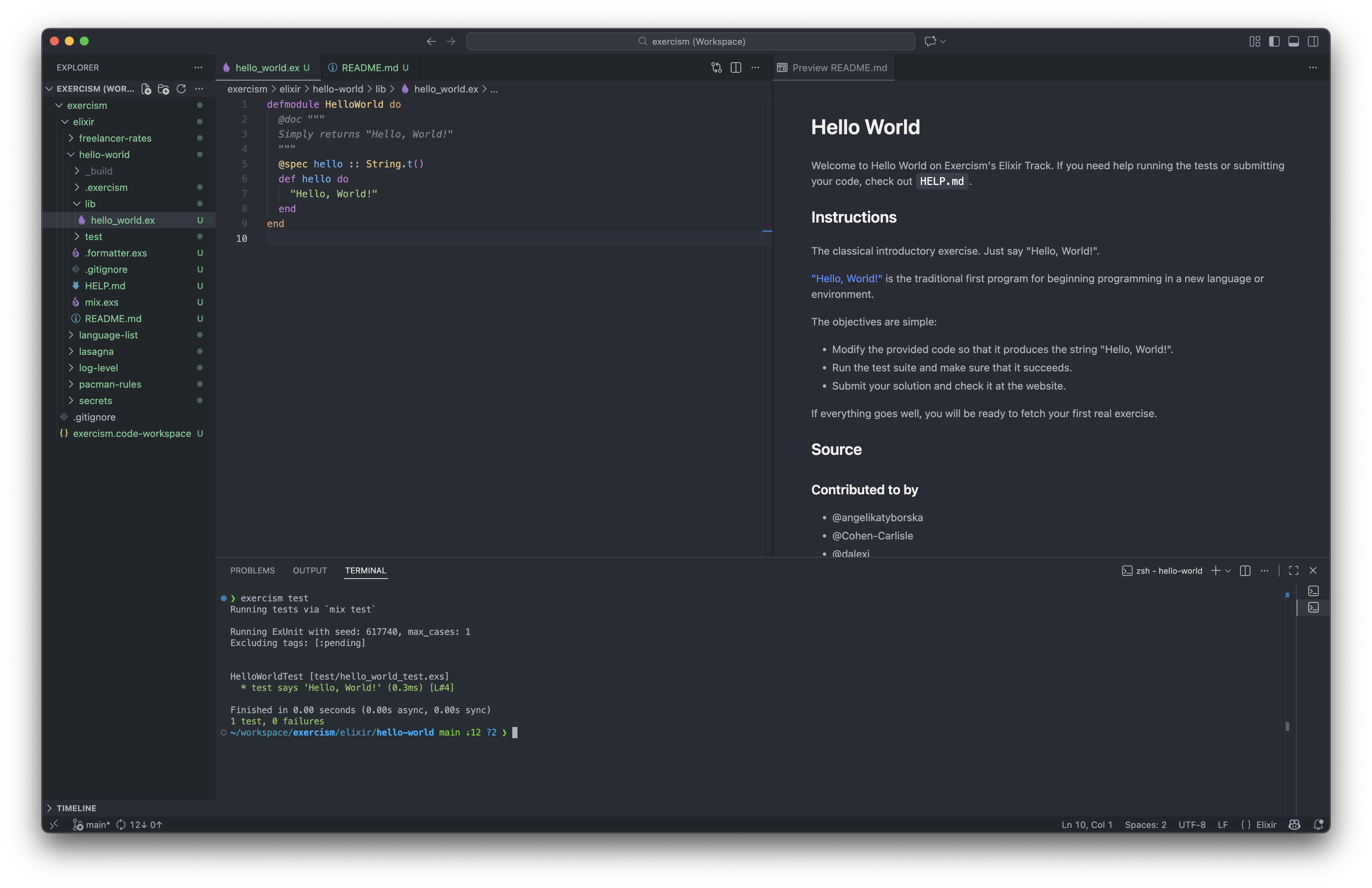
6. Exercism Objectives
It is finally time to actually learn about Elixir. To earn credit you will need to show in class that you have the first 7 assignments on the Exercism Elixir Track completed. For every assignment you have usually a week to complete the assignment (see syllabus).
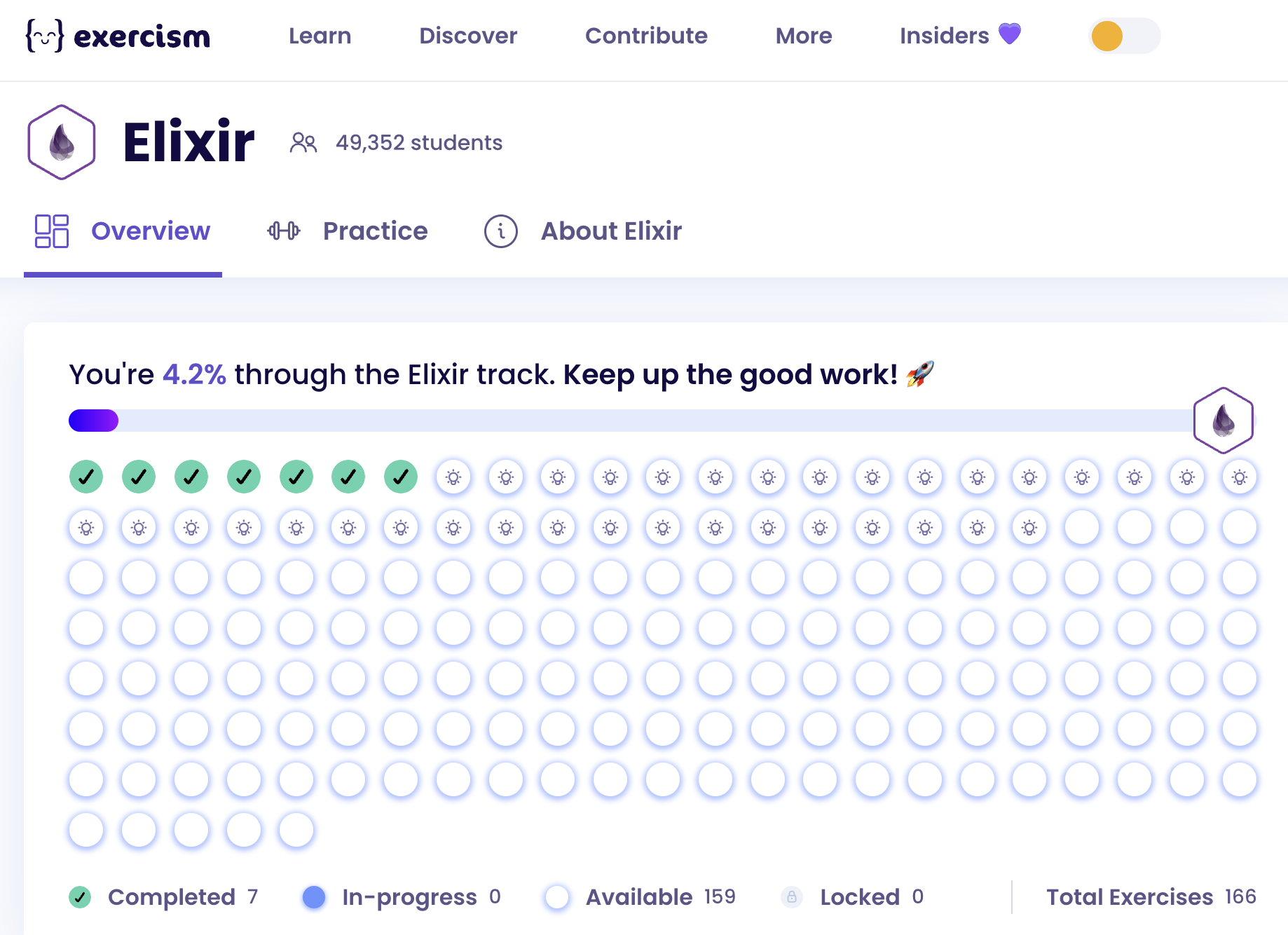
During the exercises you will learn about the following concepts in Elixir:
Booleans,Floating Point Numbers,Integers,Anonymous Functions,Atoms,Bit ManipulationandCond